Fill a PDF Form for Free: Online, Windows, Mac or Phone
How to fill a PDF form for free on Windows, Mac, iPhone, Android or online: real fields vs flat scans, saving so answers show, and signing.
Updated 6 Min. Lesezeit
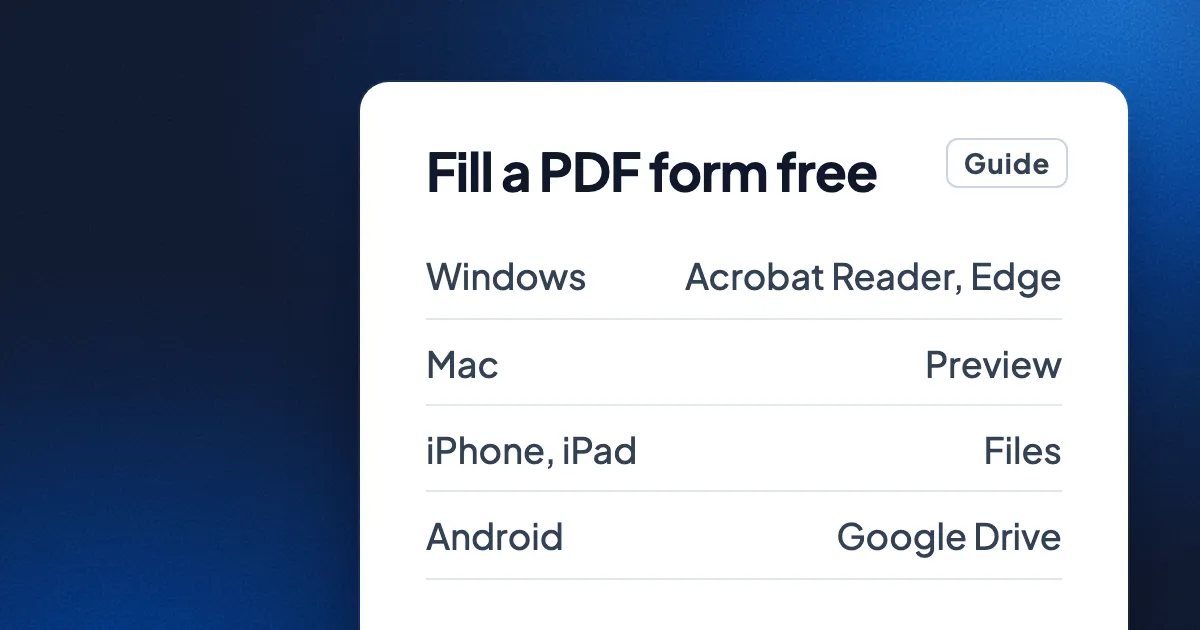
Short answer: A PDF with real form fields can be filled for free with what your device already has: Acrobat Reader or Edge on Windows, Preview on a Mac, the Files app on iPhone and iPad, and Google Drive on Android. In a browser, PDF24's Fill out PDF tool does the same job. A scanned or flat form has no fields, so you type into text boxes on top, and in every case you open the saved file once before you send it.
The steps for each app come from its maker's help pages. One of the tools, Eddocu, is the editor we make; its form tool is in beta, and we describe it with its limits.
Real form fields or a flat page
Start by clicking into a box on the form. If a cursor appears inside it, or the boxes light up when the file opens, the PDF has real fields: the answers are stored in the field, and any reader shows them. If nothing happens, the form is only printed on the page, as with a scan or a form exported from a design program, and you have to place your own text where the lines are.
| Device | Free app | Real fields | Flat forms | Signature |
|---|---|---|---|---|
| Windows | Acrobat Reader | Yes | Yes, typed text | Yes, drawn or typed |
| Windows | Microsoft Edge | Yes, basic forms | Yes, Add text | Draw with ink |
| Mac | Preview | Yes | Yes, text boxes | Yes |
| iPhone, iPad | Files | Yes | Yes, text form box | Yes |
| Android | Google Drive | Yes | No, fields only | Not in Drive's form steps |
| Browser | PDF24 Fill out PDF | Yes | Yes | Image of a signature |
Fill a form on Windows
Acrobat Reader is free, and its Fill and Sign tool recognises fillable fields, lets you type on flat forms and adds a signature you type, draw or upload. It is the one to use for a long official form, because it also runs the scripts some forms use to add up totals or check a date.
Edge, which opens PDFs on Windows by default, handles simple forms without installing anything. Microsoft's notes on the Edge PDF reader say it does basic form filling, does not run JavaScript forms and does not support the older XFA forms. If Edge shows a blank page or a message about the form, open the file in Acrobat Reader instead.
Fill a form on a Mac
In Preview, click a field and type, as Apple's Preview guide describes. If the form will not take typing, click the Show Form Filling Toolbar button and use the Text Box tool to place text on the page. The AutoFill Form button fills in your name and address where the PDF allows it, and the Sign button takes a signature from the trackpad, the camera or a nearby iPhone or iPad.
Fill a form on iPhone, iPad or Android
On an iPhone or iPad, open the PDF in the Files app. Apple's iPhone guide has you tap AutoFill, then tap a field and type. For a flat form, the Add button offers Add Text Form Box, and Add Signature lets you sign with your finger. When you are done, use the menu to export, print or share the filled file.
On Android, open the PDF in Google Drive, tap Edit, then Form Filling, enter your answers and tap Save, or use Save as to keep the blank original. Google's help page adds that if the option does not appear, the PDF cannot be filled there. When Google added form filling to Drive, it covered text fields, checkboxes, radio buttons and dropdowns, without signatures or XFA forms.
Fill a form online in a browser
PDF24's Fill out PDF works on any device with a browser: you type into the form, mark boxes with a cross and insert an image of your signature. The file goes to PDF24's servers in Germany and is deleted after an hour.
Eddocu's Fill PDF form tool, still in beta, fills in the fields of a PDF form and saves it, and it works by field name rather than by clicking on the page:
- Add the PDF and click Run with Field values left empty; the tool lists the fields the PDF contains.
- Click Add field, then enter the exact Field name and its Value. Checkboxes take true or false.
- Tick Flatten after filling if the answers should no longer be editable.
- Click Run, check the Value column and save the file.
It suits a form you know well or fill often, such as the same order form each month. If Eddocu says "This PDF has no form fields.", the form is only printed on the page. A field name the PDF does not have is reported under Not in this form, and a value a field refuses under Value not accepted. Long text is cut at the field's character limit, and signature fields and buttons cannot be filled there.
Scanned and flat forms
A flat form can still be filled with text boxes: Fill and Sign in Acrobat Reader, Add text in Edge, the Text Box tool in Preview or Add Text Form Box on an iPhone. Zoom in so each answer sits on its line, and keep the font size the same throughout.
If you send the same flat form to many people, give it real fields once. Eddocu's Create PDF form tool, also in beta, adds text fields, checkboxes, radio buttons, dropdowns and a signature box at the position you enter, and PDF24 has a form creator too. For a scan, running OCR first makes the printed questions searchable.
Save it so the recipient sees your answers
- Use Save or Save as in the app you filled it with. A screenshot or a photo of the screen is not a filled form.
- Close the file, open the saved copy in a different app and check every page. Answers that only one viewer shows usually mean an XFA form, which belongs in Acrobat Reader.
- To stop anyone from changing the answers, flatten the form: Eddocu's Flatten PDF draws filled fields into the page, and Fill PDF form can flatten as it saves.
- Keep an unfilled copy, so a mistake does not mean asking for the form again.
Sign the form
For most forms a drawn or typed signature is what is asked for, and Acrobat Reader, Preview and the Files app add one for free. In Eddocu, Sign PDF lets you draw a signature after you log in to a free Eddocu account, and it can send the PDF to others for signing. That is a simple electronic signature with a signing record, not a qualified one. If the form asks for a certificate signature, Eddocu's digital signature tool signs with a .p12 or .pfx file; it uses your device's clock and adds no trusted timestamp. Both are in beta.
Where other tools are better
- Acrobat Reader handles forms with scripts and XFA forms that the others do not, so use it for tax, insurance and government PDFs.
- Preview and the Files app are already on Apple devices, sign with your finger or trackpad and need no account.
- PDF24 fills a form by clicking on the page, which is quicker than typing field names for a form you fill once.
- Eddocu's form tools are in beta and work by field name; pick another tool if you would rather click on the page.
Facts checked on 23 November 2026 against Adobe's, Microsoft's, Apple's, Google's and PDF24's help pages. Menu names are the English ones, and they move between app versions.
FAQ
How do I know if a PDF form is fillable?
Click into a box. If a cursor appears, the form has real fields; if not, it is flat, and you type into text boxes placed on top.
Why are my answers missing when someone else opens the form?
Usually the file was not saved after filling, or it is an XFA form that only Adobe's apps display. Save again, or flatten the form so the answers become part of the page.
Can I fill a PDF form on my phone for free?
Yes. Use the Files app on an iPhone or iPad and Google Drive on Android; both save the answers into the PDF.
Can I sign a PDF form for free?
Yes, with a drawn or typed signature in Acrobat Reader, Preview or the Files app. A certificate signature also needs a certificate from your employer or a provider.