How to Convert Word to PowerPoint: One Slide per Page, or a Deck from Your Headings
Turn a .docx into an editable PowerPoint file in the browser for free, one slide per page with its pictures and tables. When PowerPoint's Slides from Outline is the better pick, and what happened to Word's Export to PowerPoint.
8 Min. Lesezeit
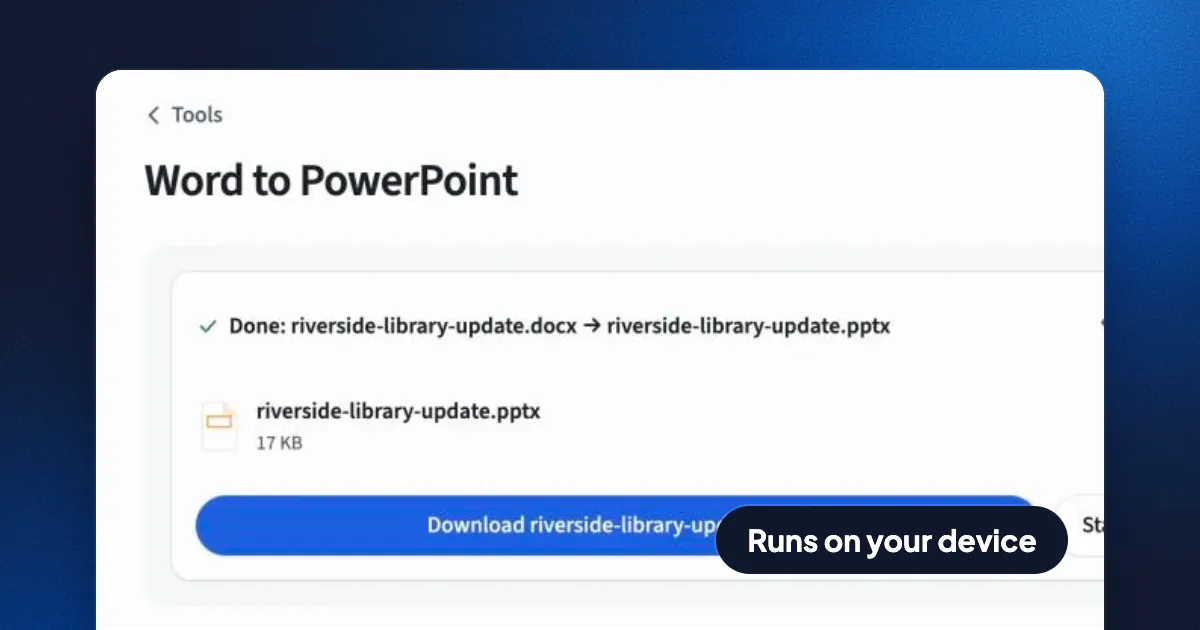
Short answer: to convert Word to PPT, open Word to PowerPoint in a browser, add the .docx, click the button labelled Word to PowerPoint and download the .pptx. Each page of the document becomes one slide, in the same order, with editable text and tables. Know what you are getting before you present: the slides keep the page's shape, so a Letter document gives portrait slides 8.5 by 11 inches; the text keeps its document sizes; and headings arrive as ordinary text boxes, not PowerPoint slide titles. If you want a deck that PowerPoint builds from your headings, with a title on every slide, use PowerPoint's own Slides from Outline command instead.
Word to PowerPoint is one of our tools at Eddocu, and it is free. To write this guide we converted two documents with it in Chrome, opened the results in macOS Quick Look, and unpacked each .pptx to read what the slides are made of.
Two kinds of "Word to PowerPoint"
Some people have a finished report, handout or lesson plan and need it on a screen in a meeting. They want the pages as they are. Others wrote their talk in Word and want PowerPoint to cut it into slides with a title on top and short points underneath. A converter that keeps the layout suits the first group and not the second.
| Method | Where it works | What you get | Main limit |
|---|---|---|---|
| Eddocu Word to PowerPoint | In the browser, free | One slide per page: text boxes, images, tables | Portrait page-sized slides, document-sized text, no slide title placeholders |
| PowerPoint, Slides from Outline | PowerPoint for Windows (.docx, .rtf, .txt) and Mac (.rtf only); not the web version | A slide per Heading 1, each Heading 2 as a bullet point, in the deck's theme | Body text in the Normal style is left out |
| Word for the web, Export to PowerPoint | Word in a browser, English documents | A themed deck made from the text | Text only; deprecated, no retirement date given |
| Copilot in PowerPoint | Microsoft 365, where your plan and organization include it | New slides written from the document, with its images where Copilot can use them | Works best under 24 MB; check every slide's wording |
The documents we converted
The first was a renovation update a library would send its board: riverside-library-update.docx, 14 KB, four Letter-size pages with a page break after each. Page one has the title, an introduction, a heading with three bullet points and a paragraph. Page two has a bar chart of weekly visits as a picture, with a caption. Page three is a four-column budget table. Page four ends with a numbered list of three decisions and a short "Next steps" section.
The second was long notes with no page breaks at all: a title, seven section headings and about 2,500 words of body text in 12 point on Letter paper. This is how most real documents are written, and it shows what the converter does when nothing tells it where a slide should end.
Step 1: add the Word file
Open Word to PowerPoint and drop the document on the page, or click to choose it. The tool reads .docx, plus the macro-enabled .docm and the template formats .dotx and .dotm. It does not read the old .doc format from Word 97 to 2003. For one of those, open it in Word, save it as a .docx and add that copy.
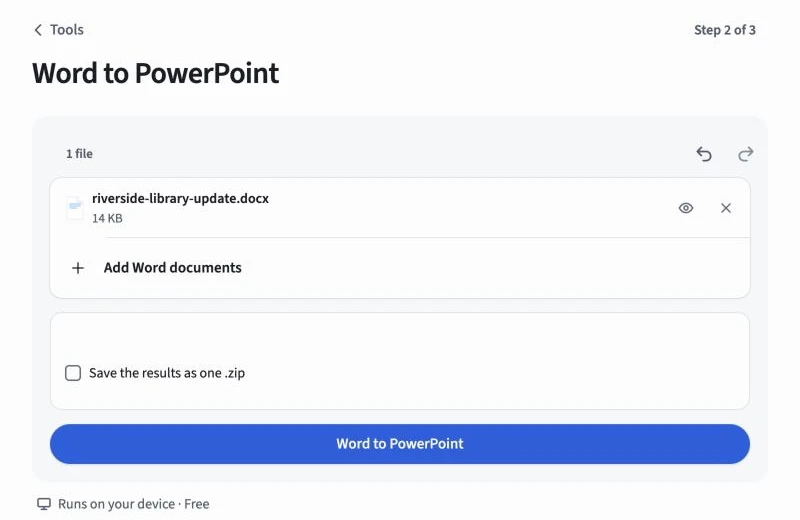
You can add up to 50 documents to the same list, and each one turns into its own presentation. Tick "Save the results as one .zip" to download a single archive instead of separate files.
Step 2: convert, then save the .pptx
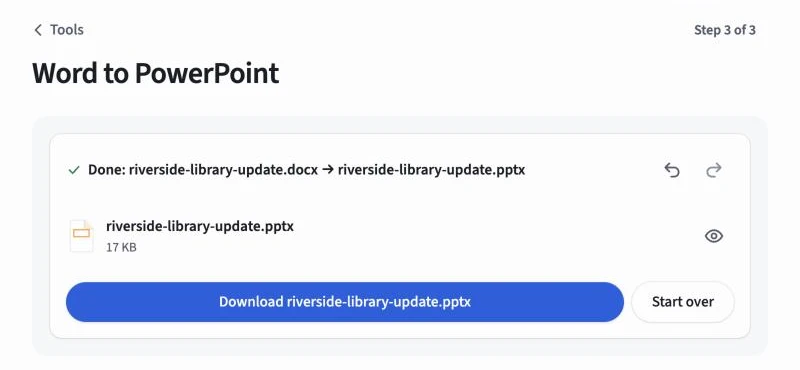
Click Word to PowerPoint. When the conversion is finished, the page names the new file and its size; ours was riverside-library-update.pptx at 17 KB, a little bigger than the document because a presentation carries its own slide master, layouts and theme.
On the website the conversion runs inside the browser tab. We kept the browser's network log open while it ran: the page fetched more of its own code and no request carried the document. That changes in one case. If the browser has no WebAssembly or web workers, or the conversion code cannot be downloaded, the page sends files to Eddocu's server instead; that route needs an Eddocu account and costs 0.1 credits per file, which the page shows under the button before you start.
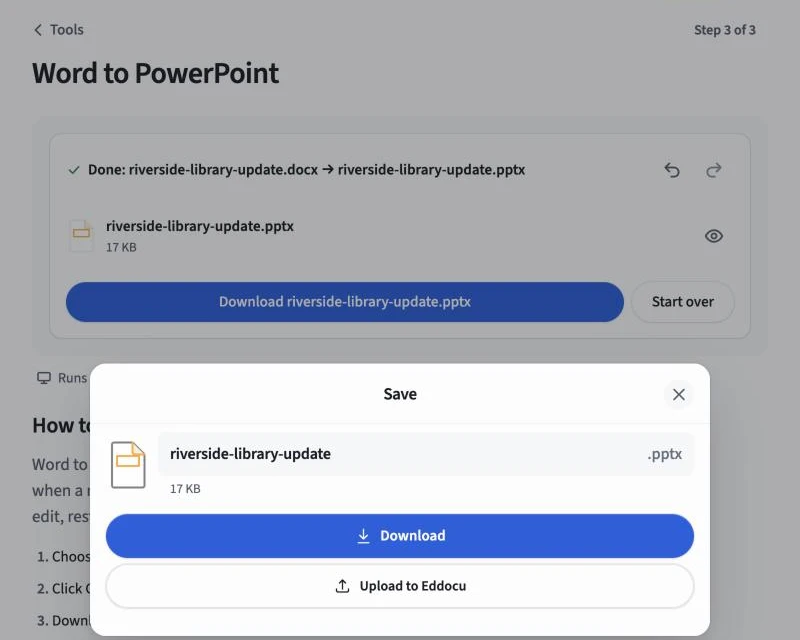
The Download button opens a Save window where you can change the file name before the .pptx lands in your downloads folder.
What was inside the presentations
We unzipped both .pptx files and read each slide's XML. For the four-page report:
- Four pages, four slides, in the same order. The page breaks in the document decided where each slide starts and ends.
- The text is editable. Each block of text sits in an ordinary text box, with its paragraphs and runs intact, so you can click into a sentence and retype it.
- Lists stayed lists. The three bullet points use PowerPoint's bullet formatting and the three decisions use automatic numbering, not typed characters. Add a fourth decision and it is numbered for you.
- The chart came over as an image that you can move, crop or replace, placed where it was on the page with its caption below. It is the same image file the Word document held, byte for byte. It is not a PowerPoint chart, so its numbers cannot be edited on the slide.
- The budget is a real table of five rows and four columns. Change a cell and the table stays a table.
- Fonts are named, not embedded. The report used Aptos, which Microsoft designed as the default Office font and supplies with the Office apps (Microsoft Typography: Aptos), and the slides ask for Aptos. Quick Look on our Mac, which has no Office installed, drew them in a serif stand-in.
The long notes with no page breaks came out as six slides: Eddocu laid the text out on six Letter pages and made one slide of each. Where a paragraph ran over the bottom of a page, it continues at the top of the next slide. Nothing overflowed: every text box ends inside the slide, and the six slides hold the same number of words as the document. The last slide carries only the final 20 words, so expect a near-empty slide when a document's last page is short.
In both files the slide size comes from the document's first page, and the type keeps its document sizes: in the report the title is 20 point, the section headings 16 and the body 12, which reads well on paper and is small on a projector across a room. The headings are formatted text rather than PowerPoint's slide title placeholders, so if you want real titles, move each heading into a layout that has one.
We viewed the files in Quick Look, not in PowerPoint itself, and our test documents had no native Word charts, headers and footers, footnotes or SmartArt, so this guide says nothing about how those convert.
Turning page-shaped slides into a talk
Because one page becomes one slide, the page breaks in Word are your slide breaks. Before converting, put a page break wherever you want the audience to see something new; otherwise the slides split wherever the pages happen to end, mid-paragraph included, as the long notes showed.
To get widescreen slides, change the slide size in PowerPoint after converting. Microsoft's instructions put the command on the Design tab, under Slide Size in the Customize group, where you can choose Widescreen (16:9). When the content has to be rescaled, PowerPoint asks how: Maximize enlarges the content and may push some of it off the slide, and Ensure Fit shrinks it so that all of it stays visible (Microsoft Support: Change the size of your slides). Going from a portrait page to a wide slide, expect to rearrange a few things by hand either way. Then open the deck on the computer that will run the presentation, where a missing font or a table too small for the room will show.
When PowerPoint's outline import is the better pick
If what you wrote in Word is the content of a talk rather than a document to show, PowerPoint's own import does a better job than any page-for-page converter, ours included. It ignores the page layout and builds slides from the heading structure, so the deck comes out with a title on every slide and in your presentation's theme.
Each paragraph in the Heading 1 style becomes the title of a new slide, and each Heading 2 under it becomes a bullet point on that slide. Paragraphs in the Normal style are not sent to PowerPoint at all, and a document with no Heading 1 or Heading 2 gets one slide per paragraph. The Word document has to be closed before you import it. In PowerPoint for Windows choose New Slide, then Slides from Outline, pick the .docx, .rtf or .txt file and click Insert. PowerPoint for Mac only imports a Word document saved in Rich Text Format, so save a .rtf copy first. PowerPoint for the web cannot import an outline (Microsoft Support: Import a Word outline into PowerPoint).
The catch is the preparation. Most reports are written in body text with a few headings, so to get a useful deck you first rewrite the document into a skeleton of headings and short points. For a report you only need to show, converting the pages is quicker and keeps the chart and the table, which the outline import leaves behind.
Word for the web's export, and Copilot
Word for the web has File, Export, Export to PowerPoint presentation, which asks you to pick a design theme, builds a deck from the text and saves it to your OneDrive. Microsoft's page for it says the option is being deprecated, with no retirement date given. The same page lists its limits: text only, so you add pictures and other media afterwards; English only; and not in Internet Explorer or Safari (Microsoft Support: Export Word documents to PowerPoint presentations).
For Copilot in PowerPoint, Microsoft says it works best with Word documents smaller than 24 MB, will try to incorporate the document's images, and might not be included in your Microsoft 365 subscription or available under your organization's settings (Microsoft Support: Create a new presentation with Copilot in PowerPoint). It writes new slides from your text rather than copying the pages, so read each one before you present it.
Related conversions
PowerPoint to Word goes the other way and turns a deck back into a document with a page per slide. If nobody needs to edit the slides, Word to PDF gives you a file that looks the same everywhere and can be shown full screen, and PowerPoint to PDF does the same for the finished deck. Presenting a PDF like a PowerPoint covers showing a PDF as slides without converting it at all.
The Microsoft pages linked above were checked on 24 November 2026.