How to Present a PDF Like a PowerPoint (Full Screen, Notes, Presenter View)
Present a PDF full screen in Eddocu, draw on pages as you talk, keep speaker notes, and when to export to PPTX for a real presenter view.
Updated 6 min read
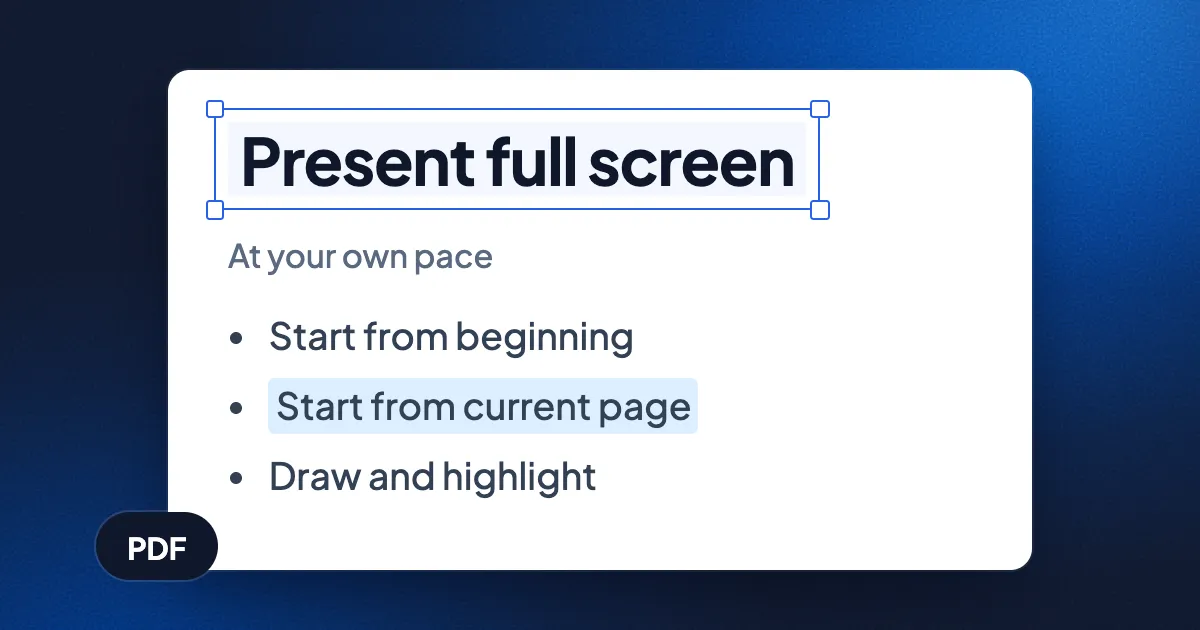
Short answer: any good PDF viewer can show a PDF full screen, one page at a time, and that is most of what presenting needs. In Eddocu, open the PDF, choose Present, then Present full screen, and pick Start from beginning or Start from current page. The arrow keys move between pages, and a pen and highlighter let you mark up a page as you talk. If you need a true presenter view, with your notes and the next slide on a second screen, export the PDF as PPTX and present it from PowerPoint or Keynote: Eddocu does not have a presenter view yet.
Why present a PDF at all
A PDF is often the only version of a deck you have. The speaker sent the slides as a PDF, the deck was made in LaTeX Beamer, or the report you need to walk through was never a presentation. A PDF also looks the same on every computer: no missing fonts, no shifted text boxes, no "this file was made with a newer version". That is a good reason to present from one.
What a PDF lacks is the presenting layer of a slide tool: transitions, speaker notes, a presenter view. Some of that you can add back, and some you cannot. The rest of this post says which is which.
Present a PDF full screen in Eddocu, step by step
- Open the PDF in Eddocu. Get the app for your device at eddocu.com/download, or open the file in the web editor. In the apps, the PDF is opened by Eddocu's offline core on your device.
- Choose Present. On a computer, Present is a button in the top bar. On a phone, it is in the menu behind the three dots, next to Export.
- Pick where to start. The Present panel shows Present full screen ("Present full screen at your own pace") with two choices: Start from beginning or Start from current page. The second one is handy when you stopped halfway through a rehearsal.
- Move through the pages. Right arrow, down arrow or Space goes forward. Left arrow or up arrow goes back. Home jumps to the first page and End to the last. The bar at the bottom has Previous page and Next page buttons, a Page number box to jump to any page, and a progress line you can click to skip ahead.
- Leave with Escape. Escape first puts the pen away, then a second press closes the presentation. Close presentation in the bar does the same, and Toggle fullscreen switches between full screen and a window.
The presentation follows you back into the editor: when you close it, the editor is on the page you stopped at. Links inside the PDF that point to another page still work while you present, so a table of contents slide can jump to its sections.
Draw on the slides while you talk
The presentation bar has three tools: Default cursor, Draw and Highlighter, with a Pen and highlighter style swatch for colour and width. Circle a number, underline a sentence, then switch back to the cursor to keep going.
Marks made while presenting are not written into the document until you say so. Clear removes the marks on the current page, and Save keeps them in the document. If you exit with marks not yet saved, Eddocu asks "Exit presentation?" and offers Keep presenting, Exit or Exit and save changes. That way a quick scribble in a meeting does not end up in the file by accident, and a useful one is not lost.
Speaker notes for a PDF
A PDF has no place for speaker notes, so a PDF never brings any with it. In Eddocu, notes belong to the document, not to the file format. Show speaker notes in the top bar (also Speaker notes in the settings menu) opens a notes box under every page, and an empty one reads "Click to add speaker notes…". Notes are for people who can edit the document.
The notes stay in the editor; the full-screen presentation shows the pages only. To read notes while you present, print them, keep the editor open on a second device, or export the document as PPTX: Eddocu's PowerPoint export writes speaker notes, so PowerPoint's or Keynote's presenter view will show them.
The presenter view route: PDF to PowerPoint
When you need the full kit (notes on your laptop, the slide on the projector, a timer and the next slide), turn the PDF into a deck first. In Eddocu, open the menu, choose Export and pick PPTX. Each PDF page becomes one slide with text you can edit. Our guide to turning a PDF into an editable PowerPoint covers what comes through and what to check. Then present the PPTX from PowerPoint, Keynote or Google Slides, which all have a presenter view.
Ways to present a PDF
| Eddocu | A PDF reader's full screen mode | PowerPoint or Keynote (after converting) | |
|---|---|---|---|
| Full screen, one page at a time | Yes | Yes | Yes |
| Start from the current page | Yes | Usually | Yes |
| Pen and highlighter while presenting | Yes, saved only if you choose | Depends on the reader | Yes |
| Speaker notes | In the editor, and in PPTX export | No | Yes |
| Presenter view on a second screen | No | No | Yes |
| Edit the text before presenting | Yes | Usually no | Yes, after conversion |
Eddocu is the editor we make, so read the table with that in mind. The columns for other tools are general: PDF readers differ, and we have not tested every one.
Where other tools are better
- Presenter view. PowerPoint and Keynote show your notes, the next slide and a timer on your own screen while the audience sees the slide. Eddocu does not do this yet.
- Transitions and animations. A PDF has none, and Eddocu does not add them. A slide tool is the place for builds and effects.
- Nothing to install. If you only need to show a PDF once, the reader already on the computer probably has a full screen or slideshow mode, and that is enough.
Eddocu is the better fit when the PDF needs a fix before you present it: a wrong date, a typo on page 12, a slide to delete. You can edit the PDF as it is, present it, and export it as PDF or PPTX afterwards, all in one editor. For editing on the go, see edit a PDF on iPhone and edit PowerPoint on Android. The full list is on features.
FAQ
How do I present a PDF full screen?
In Eddocu, choose Present, then Present full screen, and start from the beginning or from the current page. Most PDF readers also have a full screen or slideshow mode in their View menu.
Can I use presenter view with a PDF?
Not in Eddocu yet. Export the PDF as PPTX from Eddocu's Export sheet and present it from PowerPoint or Keynote, whose presenter view shows notes and the next slide.
Can I add speaker notes to a PDF?
A PDF file has no speaker notes of its own. In Eddocu you can type notes under each page with Show speaker notes, and the PPTX export writes them into the PowerPoint file.
Can I draw on a PDF while presenting?
Yes. Eddocu's presentation bar has Draw and Highlighter tools. The marks stay out of the document unless you choose Save, or Exit and save changes when you leave.
Does presenting work offline?
In the Eddocu apps, the PDF is opened by the offline core on your device, so you can present it without an internet connection. Apps for iPhone, iPad, Android, Mac, Windows and Linux are at eddocu.com/download.
Facts checked on 16 November 2026 against Eddocu's Present panel, its full-screen presentation and the speaker notes in the editor. Eddocu is free for personal use, with no ads.