How to Convert a PDF to an Editable Document
Steps for Word, Google Docs, Acrobat and Eddocu, what each keeps, how to handle scans, and why tables and fonts break when a PDF is converted.
Updated 5 dk okuma
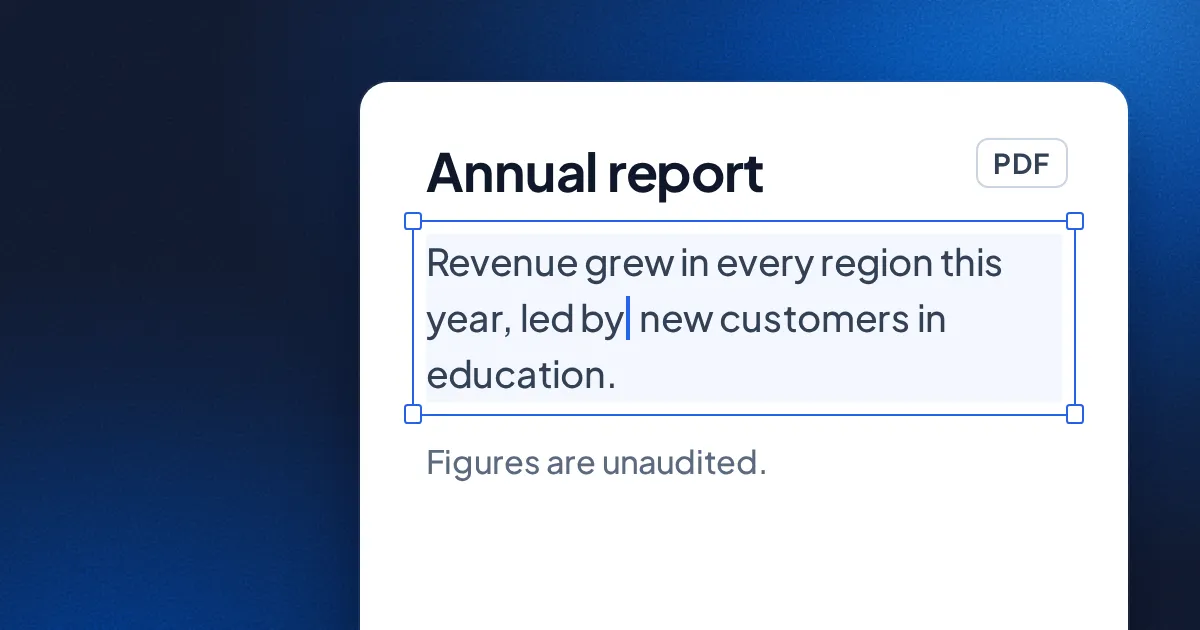
Short answer: to turn a PDF into an editable document, open it in Microsoft Word (File, Open), or upload it to Google Drive and choose Open with, Google Docs. Both make an editable copy and leave the PDF alone. Word suits PDFs that are mostly text; Google Docs also reads scans of up to 2 MB. Use Acrobat, or an editor such as Eddocu, when you want to change the PDF itself or export it as DOCX. A scan needs text recognition (OCR) first.
Eddocu is the editor we make. Steps for the other programs come from their makers' own pages, linked in each section.
First check: does the PDF contain text?
Open the PDF and try to select one word with the mouse. If single words highlight, it is a text PDF and any method below can work. If the whole page highlights as a block, or nothing does, it is a scan: the page is a picture. Some files mix both, so test a few pages.
Which method keeps what
| Method | You get | Usually kept | Often lost or changed | Scans | Cost |
|---|---|---|---|---|---|
| Microsoft Word | Word document | Text and simple layout | Table spacing, footnotes over several pages, comments, bookmarks | A graphics-heavy page may become one image | Needs a Word version that opens PDFs |
| Google Docs | Google Doc, downloadable as DOCX | Bold, italics, font size and type, line breaks | Lists, tables, columns, footnotes, endnotes | Yes, up to 2 MB | Free with a Google account |
| Adobe Acrobat | DOC or DOCX, or the PDF edited in place | Depends on the file | Check tables and fonts | Yes, recognised during export | Standard $14.99, Pro $19.99 a month on an annual plan |
| Eddocu apps | The PDF edited, or DOCX, PPTX, HTML | Text, images, pages | Complex layouts can shift | Run OCR first | Free for personal use |
Microsoft Word
- In Word, choose File, Open and pick the PDF.
- Word says it will make a converted copy. Choose OK.
- Compare the copy with the PDF page by page, starting with tables and footnotes.
- Save it as a Word document.
Microsoft's page on opening PDFs says the original stays intact and that conversion works best with mostly text. It names the weak spots: tables with cell spacing, page colors and borders, tracked changes, frames, footnotes that span pages, endnotes, audio and video, bookmarks, tags, comments and some font effects. See how Word compares with Eddocu for the rest.
Google Docs
- Upload the PDF to Google Drive on a computer.
- Right-click it and choose Open with, Google Docs.
- Fix the text, then use File, Download for a DOCX.
Google's instructions ask for a file of 2 MB or less, text at least 10 pixels high and pages turned the right way up. Sharp, evenly lit images in common fonts give better results. Choose this for plain letters and pages of prose; tables, lists and columns are unlikely to be detected.
Adobe Acrobat
- Open the PDF in Acrobat and select Export PDF in the right pane.
- Choose Microsoft Word, then Word Document.
- Click Export, name the file, pick DOC or DOCX and save.
Adobe's guide says text recognition runs automatically when the file contains scanned text. It lists Acrobat Standard at $14.99 and Pro at $19.99 a month, on an annual plan. Acrobat is the stronger choice for heavy PDF work, as our Acrobat comparison says.
Eddocu
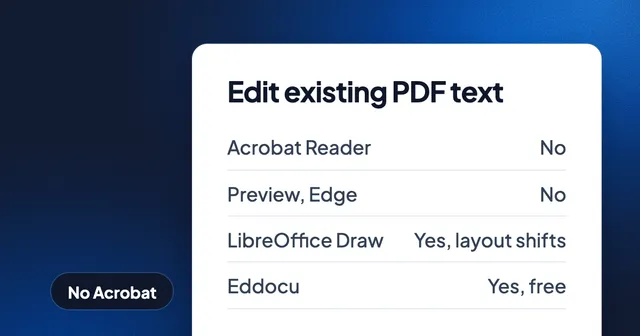
To change a few words, you may not need to convert at all. Open the PDF in the app, edit the text and save it as a PDF; the Edit PDF page does it in a browser, with a free account.
To get a Word file from the app:
- Open the PDF in Eddocu.
- Open the three-dot menu at the top right and choose Export.
- Pick DOCX, choose all pages or a range, and click Export.
The desktop and phone apps do this offline with no account. Eddocu imports the PDF into its own format and writes a new file on save, so check complex layouts. We published a test of PDF to Word and back, including the table shading it lost. On the web, use PDF to Word or PDF to PowerPoint for slides. The website converts a PDF on our server, after you sign in and using credits, so use the app for a confidential file.
Scanned PDFs
A scan holds no letters, only pixels, so OCR has to guess them. Straighten the pages, use a clean copy and run OCR before you convert. Then proofread numbers, names, dates and account numbers against the image, because a wrong digit still looks like a valid digit. Handwriting and faint print are often quicker to retype.
What breaks, and why
Most PDFs store letters and their positions on the page. A converter has to work out which letters form a line, a paragraph or a table cell, and that guess causes the errors below.
| What you see | Why | What to do |
|---|---|---|
| A line break at the end of every line | Each printed line was stored separately | In Word, select one paragraph, then use Find and Replace to change ^p to a space |
| A table turns into tabbed text | The PDF has drawn lines but no table | Rebuild the table, or export from the source file |
| Text reflows onto another page | The font is missing and a wider one replaces it | Install the font, or accept new page breaks |
| Wrong letters after copying | The file maps its characters incorrectly or not at all | Run OCR on an image of the page |
| Columns read across the page | Reading order is not stored | Compare with the PDF and move the text back into order |
| The form has no fields | Field data was not carried over | Use a form tool and keep the PDF |
| A digital signature is gone | A converted copy is a different file | Keep the signed original |
When not to convert
- You have the DOCX, PPTX or design file somewhere. Edit that and export a new PDF.
- You only need to fill or sign. Use a form filler and keep the layout.
- The document is signed or filed as evidence. Work on a copy.
Facts checked on 25 November 2026. Menu names can change with updates.
FAQ
How do I turn a PDF into an editable document for free?
Open it with Google Docs from Google Drive if it is under 2 MB and mostly text. The Eddocu apps export PDF to DOCX free for personal use.
Can I convert a PDF to editable text without losing formatting?
Not with certainty. A plain text PDF made from a word processor converts well. Tables, columns, footnotes and unusual fonts are the parts to check. If the layout must not move, edit the PDF itself.
Why is my converted PDF not editable?
It is probably a scan, and the new document holds a picture of each page. Run OCR and convert again.
Does converting change the original PDF?
Word and Google Docs both work on a copy. Keep the original until you have compared the two.