Convert a PDF to Word and Back Without Uploading It
Export a PDF to an editable Word file on your computer or phone, with the layout kept and no internet needed, then turn the Word file back into a PDF. Recorded in the app, with what survives the trip and what does not.
Published Updated Reading time 3 min read
On this page
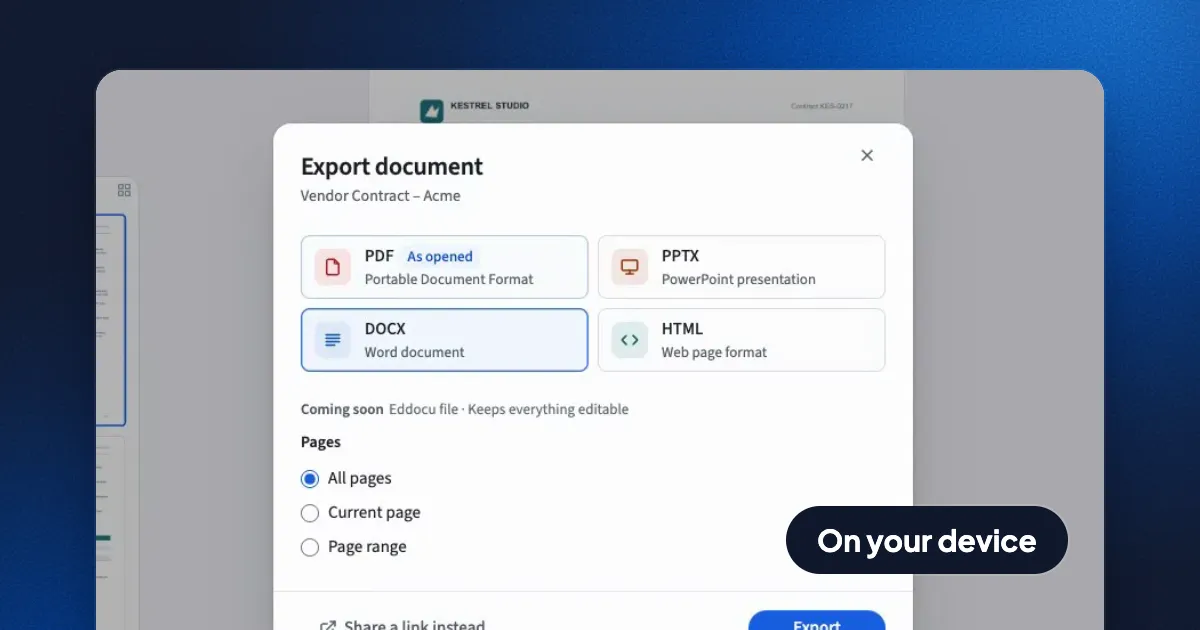
Short answer: open the PDF in the Eddocu app, choose Export, pick DOCX and click Export. You get a Word file that looks like the PDF page for page, made on your computer with no upload and no internet connection. To go back, open the Word file in Eddocu and export it as PDF. In our test every word, font and paragraph came back in place; the table's coloured header row and row shading did not, which we are fixing.
PDF to Word, step by step
- Open the PDF in Eddocu from its library.
- Open the menu at the top right (the three dots) and choose Export.
- Pick DOCX. Leave All pages selected, or choose the current page or a page range such as
1-5, 8. - Click Export and choose where to save the Word file.
The same sheet exports to PowerPoint (PPTX) and HTML too. The format the document came in as is marked "As opened".
What the Word file looks like
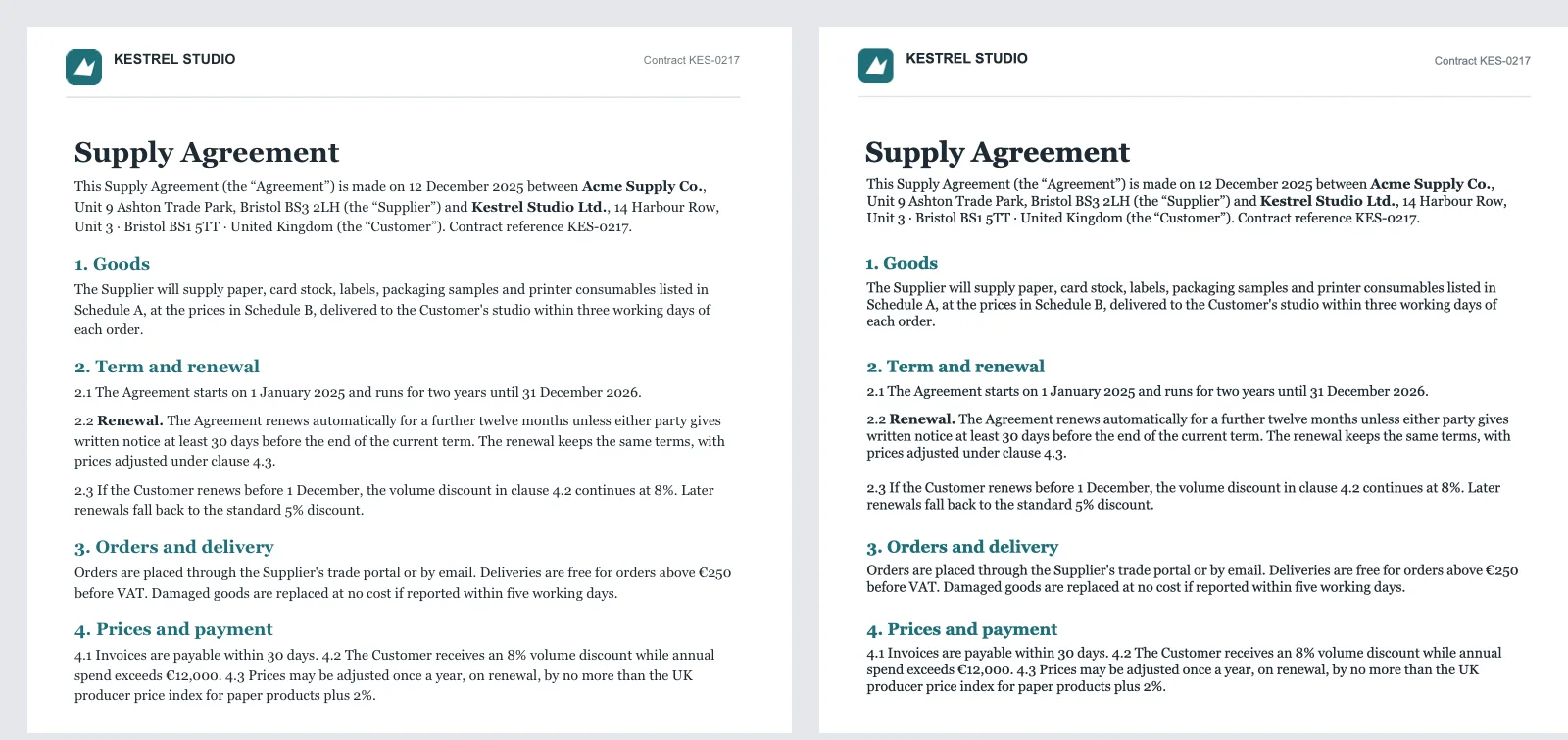
- The layout stays. Each paragraph, heading, logo and table goes to the same place on the same page, with its fonts, sizes, colours and bold text, and the page header and footer come along.
- The text is real text. You can select it, search it and change it in Word, Pages or Google Docs. Nothing is turned into a picture of text.
- Paragraphs are placed boxes. To keep the page looking the same, each paragraph sits in its own text box at its place on the page. Edit the words inside a box freely; just know that a long new paragraph grows its box rather than pushing the text below it down the page.
If you want to change a few words, you may not need Word at all: Eddocu edits the text of the PDF itself, in Editing mode, and saves it as a PDF again.
Word to PDF
Open the Word file in Eddocu, choose Export, pick PDF and click Export. The second half of the recording does exactly this with the Word file made a moment before. The PDF that comes out has the same two pages, the same text in the same fonts, and every paragraph in its place.
One thing did not survive the trip back, and we'd rather say so: the price table on page 2 lost its teal header row and its row shading, and the thin line under the page header disappeared. The words in the table are all there. The Word file itself still has them; they are dropped when Eddocu reads the Word file back in. Until that's fixed, if you need a PDF again, export it from the original rather than going round through Word.
Where it works
| Converts on your device, offline | Account | |
|---|---|---|
| Eddocu for Mac (from eddocu.com), Windows and Linux | Yes | Not needed |
| Eddocu for iPhone, iPad and Android | Yes | Not needed |
| Eddocu on the website (editor or the PDF to Word tool) | No, on Eddocu's servers | Needed |
In the apps, the export is written by Eddocu's offline core on your device, the same engine that opens the document. On the website there is no core on your device, so the conversion runs on our servers after you sign in.
Limits, today
- Scanned PDFs with no text layer come across as pictures; there is no text in them to convert.
- Text doesn't reflow from one paragraph box into the next, as described above.
- Going PDF → Word → PDF loses table shading and thin lines on the way back, for now.
- The Mac App Store version of Eddocu converts on our servers, like the website.
FAQ
Can I convert a PDF to Word without uploading it?
Yes. In the Eddocu apps for Mac, Windows, Linux, iPhone, iPad and Android, Export to DOCX runs on your device and works with no internet connection.
Will the Word file look like my PDF?
Yes, page for page: text, fonts, colours, pictures and tables stay where they were. Line spacing can differ slightly depending on the app you open the Word file in.
Can I turn the Word file back into a PDF?
Yes. Open it in Eddocu and export it as PDF, as in the second half of the recording. Text and layout come back; table shading and thin lines are lost for now, as described above.
Facts checked on 14 November 2026 against Eddocu 1.3.20 for Mac: export of a two-page contract to DOCX and back to PDF, both files opened in macOS Quick Look.
Related posts
How to Merge PDF Files Without Uploading Them, Then Put Every Page in Order
Join up to 100 PDFs in your browser with nothing uploaded, no account and no watermark, then drag single pages into place. Recorded step by step, with Preview and merge websites compared.
Guide 3 min read
Turn Photos of Receipts Into a PDF With Text You Can Search and Edit
Pick receipt photos, choose Text boxes, and Eddocu reads every page on your device into real text, then exports a searchable PDF. Recorded step by step, with what it gets right and wrong.
Guide 3 min read
Search Inside Every PDF, Word and PowerPoint File: Eddocu vs Spotlight and Windows Search
Find a document by its name or by any words inside it, and land on the right page. How Eddocu searches 133,245 pages in under 7 ms, and how that compares with Spotlight and Windows Search.
Guide 4 min read