Redact a PDF Properly: Why a Black Box Is Not Enough
A black box over text leaves it selectable. What real redaction removes, how to do it in Acrobat, free tools and Eddocu, and how to check the file.
Updated 6 dk okuma
Short answer: a black rectangle drawn on a PDF hides words from the eye, not from the file. The text under it can still be selected, copied and searched. To redact a PDF you need a tool that deletes the words from the page content, then removes what the page does not show: metadata, attachments, hidden layers and form data. Afterwards, check the saved copy before you send it.
This guide is for lawyers, HR teams and anyone sending a file with names, ID numbers, salaries or health details in it. Eddocu is the editor we make; its redaction tools are covered below, next to Acrobat and the free options.
Why a black box is not redaction
A PDF page is a list of drawing instructions: put these letters here, draw this image there, fill this rectangle. A highlighter set to black, a shape tool, or a black-filled comment adds one more instruction on top. The letters underneath are still in the file, so copy and paste, search, a screen reader or a text export reads them as if the box were not there.
Two public cases show how this goes wrong:
- Paul Manafort's lawyers, January 2019. A filing in his case had black bars over passages, but CNBC reported on 8 January 2019 that the hidden text appeared when the sections were copied and pasted into a new document. A corrected version was filed later.
- The Epstein files, December 2025. After the Justice Department released a batch of documents on 19 December 2025, The New York Times reported that some blacked-out passages, from a 2021 civil suit, could be revealed by copying them into another file. The department said those redactions had been applied by parties to that suit, and in February 2026 it said it was fixing thousands of documents.
Neither case needed special software to undo. The words were never removed, only covered.
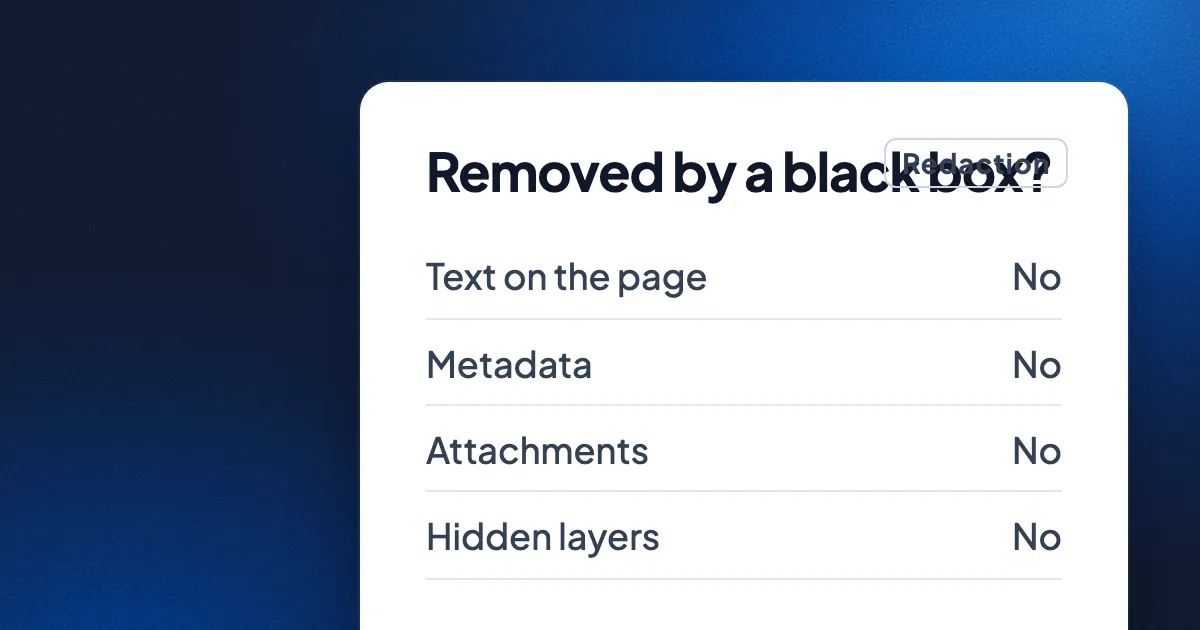
What real redaction has to remove
| Where the data sits | Removed by a drawn box | What a redaction tool should do |
|---|---|---|
| Text on the page | No | Delete the characters from the page content |
| Images under the box | No | Paint over or cut the pixels in the image itself |
| Metadata (author, title, edit history) | No | Clear the document properties and XMP data |
| Hidden layers | No | Delete the layer, not just switch it off |
| Form fields | No | Clear or flatten fields that hold the data |
| Attachments | No | Remove embedded files |
| Bookmarks and comments | No | Remove or rename the ones that quote the data |
Scanned pages need one more step. A scan is a picture of text, so a word search finds nothing until the page has a text layer from OCR. Without one, a search-based redaction reports zero matches and the name stays visible.
How to redact a PDF in Acrobat Pro
The Redact tool is in Acrobat Pro and Acrobat Studio, not Acrobat Standard. Adobe's redaction tutorial goes through it in this order:
- Open All tools and choose Redact a PDF.
- Mark areas with Redact text and images, or use Find text and redact to mark every occurrence of a name or number.
- Use Redact pages for whole pages.
- Choose Apply. Until then the marks are only marks.
- Continue to sanitize, which removes hidden information such as comments, metadata and hidden layers.
- Save the result as a new file and keep the original apart.
Adobe's US plans page lists Acrobat Pro at $19.99 a month on an annual plan, $239.88 a year paid up front or $29.99 month to month. The page shows local prices in other countries.
Other tools that remove the text
- Preview on a Mac. The Redaction Selection tool in the Markup toolbar removes selected text. Apple's guide says the redaction becomes permanent once you close the document, that table of contents entries linking to redacted text are not removed, and that you should work on a duplicate.
- PDF-XChange Editor on Windows. Its Protect tab has Mark for Redaction, Find and Redact with patterns, Apply All Redactions and Sanitize Document, according to its help pages. We could not confirm which of them work without a licence, so test the free version on a copy first.
- Stirling PDF. The open-source toolkit's Redact tool deletes text and areas, with an option in automatic mode to turn the result into page images.
- LibreOffice, before the PDF exists. If you still have the Word or spreadsheet file, Tools > Redact in Writer, Calc or Impress exports a redacted PDF in which pages are pixels, and Auto-Redact marks words for you.
Redacting with Eddocu's Find and redact and Sanitize PDF
Two of Eddocu's PDF tools cover redaction between them: one takes the words out of the page, the other strips what sits around the page. Both are in beta.
Find and redact (in beta) takes a list of words, or a regular expression such as [0-9]+-[0-9]+ for case numbers, and options for match case, whole words and pages. Each match's characters are deleted from the page content, pictures beneath a match are painted over and annotations touching it are removed. A box in the color you choose is drawn in its place. Remove metadata is ticked by default. The tool reports how many matches it found and saves a new file ending in -redacted.pdf, and the file never leaves your device.
Sanitize PDF (in beta) removes JavaScript, embedded files, outside links, actions and metadata, all ticked by default, and can also remove form fields and comments. It leaves page content alone, so run it after Find and redact, not instead of it.
Limits to know before you rely on them:
- Find and redact searches page text only. Bookmarks, attachments and form-field lists are not searched.
- A scan gives zero matches. Run OCR PDF first.
- It redacts by search, so it cannot black out a signature or a photo that has no text in it.
- Hidden layers are deleted with PDF layers, a separate step.
How to check a redacted PDF before you send it
- Open the saved copy, not the one you edited. Select all text on a redacted page, copy it and paste it into a plain text editor. The removed words must not appear.
- Search the file for each name, number and email you removed.
- Open the document properties, or View metadata, and read the author, title, subject and keywords.
- Look for attachments with Extract attachments or your viewer's attachments panel.
- Open the layers panel and the bookmarks panel, and click through any form fields.
- Zoom in on redacted images to make sure the pixels are covered, not just a frame around them.
If a step finds something, fix the original and redact again. Do not try to patch the redacted copy with a new box on top.
Where other tools are better
For court filings, discovery and regulated work, pick Acrobat Pro or PDF-XChange Editor. They mark areas by hand, redact whole pages and have years of use behind them, and Eddocu's tools are still in beta. If you have the source file, redacting in LibreOffice before export is simpler than fixing the PDF. Eddocu fits the common office case: removing a list of names or numbers from a PDF on your own device, without paying for Acrobat Pro.
FAQ
Can a redacted PDF be un-redacted?
Not if the text was removed. If it was only covered, yes: copying, searching or deleting the box shows it.
Is printing to PDF or flattening enough?
Not reliably. Flattening merges comments into the page, but the text under a box can stay as text. Turning pages into images does remove the text layer, but only after the boxes are drawn in; any text left visible becomes readable again with OCR.
Does Acrobat Standard redact?
No. Redact is in Acrobat Pro and Acrobat Studio.
Is there a free way to redact a PDF?
Preview on a Mac, Stirling PDF and LibreOffice for source files are free. Eddocu's Find and redact is free for personal use, in beta.
Facts checked on 23 November 2026 in Adobe's, Apple's, PDF-XChange's, Stirling PDF's and LibreOffice's own documentation, with Adobe's US prices.