How to Convert PowerPoint to Word: Slides, Speaker Notes or Just the Text
Turn a .pptx into a Word document with one page per slide and editable text, in the browser for free. When PowerPoint's Create Handouts is the better pick for speaker notes, and how to get only the words.
8 min read

Short answer: to turn a PowerPoint into a Word document that looks like the slides, open PowerPoint to Word in your browser, add the .pptx file, click convert and download the .docx. Each slide becomes one page with the text still editable. If you need your speaker notes in the document, use PowerPoint's own Create Handouts command instead (File > Export > Create Handouts), which only exists in PowerPoint for Windows. If you only want the words, save the deck from PowerPoint as an outline in Rich Text Format.
PowerPoint to Word is a free Eddocu tool, made by us, and we used it without signing in. For this guide we converted a real deck with it in Chrome, then opened the Word file in macOS Quick Look and read the file's XML to see what came through.
Pick the method by what the Word file is for
"PowerPoint to Word" covers three different jobs, and no single method does all three well. A handout people will read on paper needs the slides as they look. Rehearsal notes or a lecture script need the speaker notes. A report or an article built from a talk needs plain text that flows from page to page.
| Method | Where it works | What the Word file holds | Speaker notes |
|---|---|---|---|
| Eddocu PowerPoint to Word | In the browser, free | One page per slide, laid out like the slide, text editable | Not included |
| PowerPoint, Create Handouts | PowerPoint for Windows only | Slides in a Word layout you choose, next to or below your notes | Included |
| PowerPoint, outline saved as RTF | PowerPoint, Save As | Slide titles and body text as a plain outline, no pictures | Not included |
The deck we converted
We used an eight-slide thesis defense: a title slide with a picture on a dark background, a two-column methods slide, a slide of four headline figures, a four-year timeline, a slide with a real table of results, a quote next to a picture, and a closing slide. Three of the slides carry speaker notes, such as "Pause on the 4.3 degree figure". The file is 35 KB.
Step 1: add the presentation
Open PowerPoint to Word and drop the file on the page, or click to choose it. Besides .pptx, the file picker accepts the macro-enabled .pptm, the .potx template format and the .ppsx show format (that list is in the tool's code); we only tested .pptx. It does not take the old .ppt format from PowerPoint 2003 and earlier. For one of those, open it in PowerPoint, save it as .pptx, and convert that.

If you have a folder of lectures to convert, add them all here rather than one at a time. Each deck becomes its own .docx (we tried two at once and got two files back), up to 50 decks in one batch, and ticking "Save the results as one .zip" gives you a single download instead of several.
Step 2: convert and save the Word file
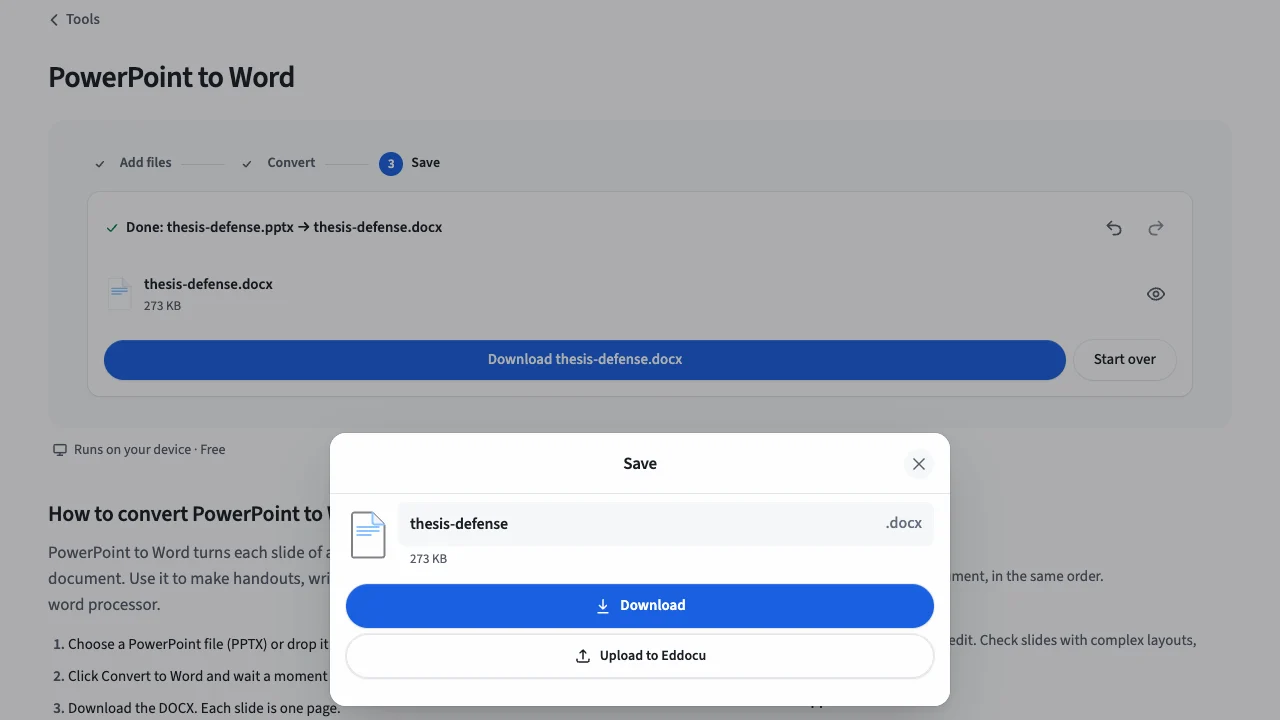
Click the PowerPoint to Word button. Our deck took a few seconds. The page tells you when it is done and shows the new file's name and size: thesis-defense.docx, 273 KB. Most of that weight is the two fonts the slides use, Merriweather and Source Sans 3, which the converter embedded in the file. Embedding only helps in apps that use embedded fonts: macOS Quick Look ignored them and showed a stand-in serif, and we did not test Microsoft Word.
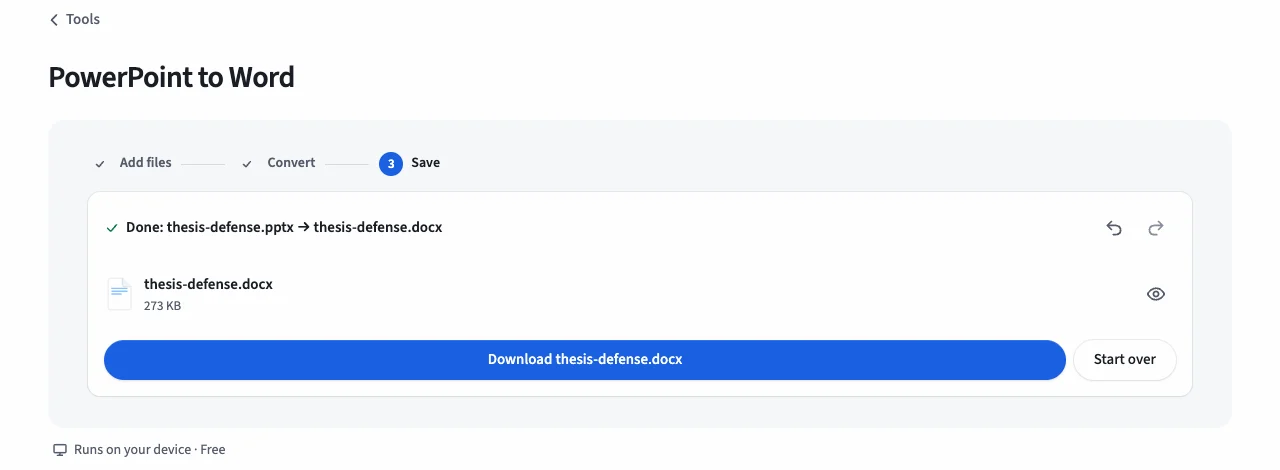
The file is converted in the browser tab, on your device, and is not uploaded. In our network log of the conversion, the page only downloaded its own code and fonts. That matters for decks you would not hand to a stranger, such as unpublished research or a client's figures.
To save it, click Download thesis-defense.docx. A small window lets you rename the file before it is saved, then Download puts it in your downloads folder. The second button, Upload to Eddocu, is only for people who keep their documents in an Eddocu account; you can ignore it.
What came out the other side
We unpacked the .docx to see exactly what it contains, rather than trusting a thumbnail.
- One page per slide, in order. Eight slides gave eight pages, each in its own section of the document.
- Pages shaped like the slides. Every page is landscape with the slide's 16:9 proportions and no margins, and bigger than Letter or A4 paper.
- Text you can edit. Every title, figure, label and the quote came over as real text, not as a picture of the slide, so you can select it and correct a typo.
- The table stayed a table. The results slide became a real Word table with its four columns and header row, so you can edit cells instead of retyping them.
- Pictures and backgrounds kept. Both images from the deck are in the document, and the dark title slide stayed dark when we opened the file in Quick Look.
The text is placed the way it was on the slide. Each block of text sits in its own text box at the same position, rather than in one long column. That is what keeps the page looking like the slide, and it is fine for fixing a word or two. It is the wrong shape for rewriting a talk into a report, because adding a paragraph to one box does not push the next box down. For that job, the outline method further down gives you better raw material.
What did not come over: speaker notes
None of the three speaker notes appeared in the Word file. PowerPoint to Word converts what is on the slides, and the notes are not on the slides. If the reason you want a Word file is to print your script beside each slide, this tool is the wrong pick, and the next section is the one you need.
When PowerPoint's Create Handouts is the better choice
If you have PowerPoint for Windows, its built-in export is the better tool for notes. Microsoft's steps are: open the presentation, choose File > Export > Create Handouts, then click Create Handouts again. In the Send to Microsoft Word window, pick a page layout that puts the notes beside or below each slide, and Word builds a document with each slide and its notes together (Microsoft Support: Convert handouts to a Word document).
The same window asks how to add the slides. Paste puts in a copy that stays as it is if you edit the deck later. Paste link keeps a link, so later changes to the presentation show up in the Word document (both are described on the same Microsoft page). Pick Paste if you will send the Word file to someone else, since the link points to a file on your computer.
There are two limits. First, the command is not in every version of PowerPoint. Microsoft's page says exporting handouts is not possible in PowerPoint for the web, and that PowerPoint for Mac "does not currently support creating and exporting handouts." Second, it can fail on long decks. Microsoft's article on editing handouts in Word mentions the error "PowerPoint couldn't write to Microsoft Word" and first suggests restarting the computer and opening only PowerPoint. If a very large deck still fails, it suggests saving a second copy of the presentation, removing the slides that already exported, exporting the rest and combining the two .docx files (Microsoft Support: Edit or print PowerPoint handouts in Word).
When the notes do not need to be editable, printing them is simpler than Word, and it is the route that works on a Mac. PowerPoint prints Notes Pages, one slide per page with its notes underneath. On Windows, choose File > Print, then Notes Pages under Print Layout (Microsoft Support: Print speaker notes). In PowerPoint for Mac, choose File > Print and pick Notes from the Layout menu under PowerPoint (Microsoft Support: Print your PowerPoint slides, handouts, or notes), then open the PDF menu at the bottom of the print window and choose Save as PDF (Apple Support). Either way you get a PDF of slides and notes to share. You would then need a separate step, such as our PDF to Word tool, to turn that PDF into an editable Word file, and we would only do that if you really need to change the text.
When you only want the words
Sometimes the slides are just scaffolding and what you want is the text, to turn a talk into an article or a set of lecture slides into reading notes. For that, a page-per-slide document gets in the way. PowerPoint can save the outline of a deck as a Rich Text Format (.rtf) file: choose that file type when you save the deck (PowerPoint for Windows lists it as Outline/RTF), then open the .rtf in Word and save it as .docx. The catch is in what counts as outline text: a Microsoft Q&A answer from a community MVP explains that it exports the slide text in placeholders, not text in text boxes or shapes, and no graphics (Microsoft Q&A). Decks built on PowerPoint's standard title and content layouts keep their text, because that text sits in placeholders. Decks where the designer drew every block of text as its own text box can come out nearly empty.
If your deck is the second kind, try converting it with PowerPoint to Word and copying the text out of the Word file. In our deck, every text box, the table cells and the quote came over as text, placeholder or not; you only have to put the pieces in order yourself. Our deck had no SmartArt, charts or grouped shapes, so we cannot tell you how text inside those comes over.
Before you send or print the Word file
- Scroll through every page. The tool's own page warns that complex layouts can shift. Our deck converted cleanly, but look hardest at slides with many overlapping shapes.
- Print to fit. The pages are larger than office paper, so printing at 100% cuts them off. Use your print dialog's fit-to-page option and landscape orientation.
- Resize only if you need a normal document. You can change the page size to Letter or A4 in Word's layout settings, but the text boxes keep their positions, so check that nothing now falls off the page.
Related conversions
Word to PowerPoint goes the other way and turns a document into slides, useful when the report came first and the talk second. PowerPoint to PDF is the better choice when nobody needs to edit the handout, because the reader gets the slides as designed and nothing can be moved by accident. If what you have is a PDF of a deck rather than the deck itself, turning a PDF into an editable PowerPoint covers getting slides back, and PDF to Word and back covers the document side.
The Microsoft and Apple support pages linked above were checked on 24 November 2026.