How to Edit the Text of a PDF on iPhone, Free and Without an Account
Open a PDF in Eddocu for iPhone, switch to Editing, change a line in the PDF's own font and export it as PDF from the share sheet. Recorded step by step, with what the exported file keeps.
Published Reading time 3 min read
On this page
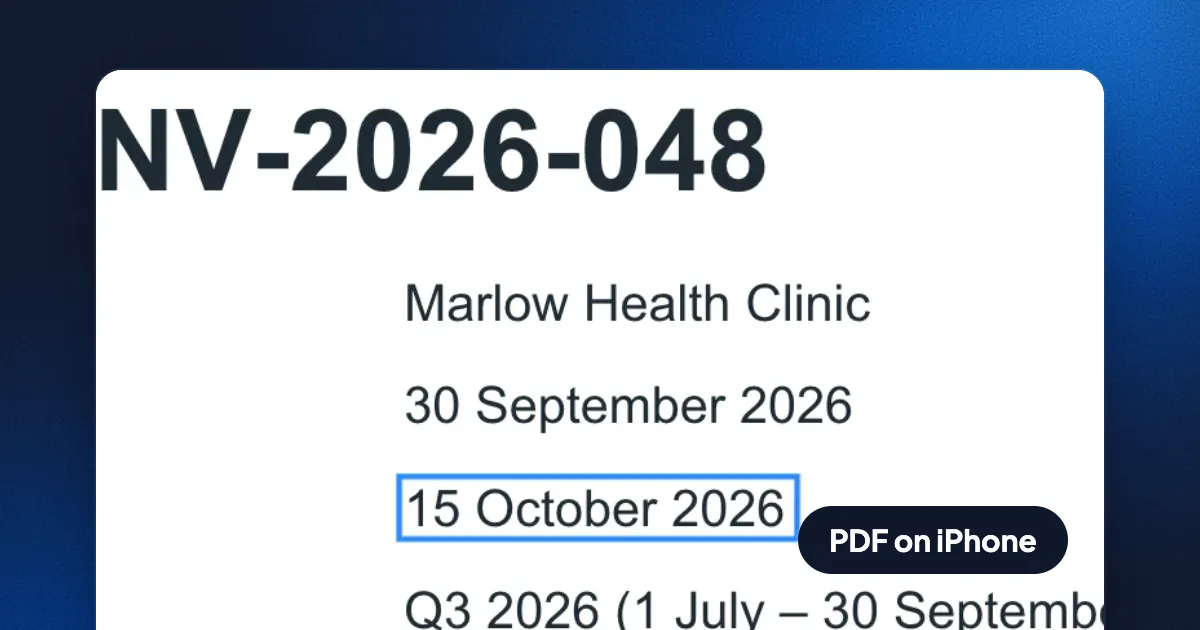
Short answer: open the PDF in Eddocu for iPhone, switch from Viewing to Editing, tap the line you want to change, tap it again and type. Then open the menu, choose Export, keep PDF and tap Export: the share sheet opens so you can save the new PDF to Files or send it. You change the PDF's own text, in its own font, not a box of new text laid on top. No account and no upload are needed; it all happens on the phone.
Edit a PDF on iPhone, step by step
- Open the PDF in Eddocu. In Files, Mail or Safari, tap Share and choose Eddocu. The PDF opens on your phone and stays in Eddocu's library.
- Switch to Editing. Documents open in Viewing, so scrolling and zooming can't change anything by accident. Tap the eye at the top left and choose Editing.
- Tap the line, then tap it again. The first tap selects the line, with a small bar to comment, ask AI, cut or delete it. The second tap zooms in, puts the cursor in the text and opens the Text panel: style, bold, italic, underline, strikethrough, link, lists, font size and colour.
- Type your change. The new words take the line's font, size and colour. Close the panel when you're done; Eddocu keeps the change as you go.
- Export it as a PDF. Tap the three dots at the top right, then Export. PDF is already selected ("As opened"); keep All pages and tap Export. The share sheet opens: Save to Files, AirDrop, Mail or any app that takes a PDF.
What the exported PDF looks like
We opened the exported invoice next to the original. The only difference is the due date: the logo, the table with its coloured header and shaded rows, the payment details and the footer are where they were, in the same Arial and Arial Bold. The text is still text, so it can be selected, searched and copied in any PDF reader. The exported file is 17 KB; the original was 74 KB.
The same Export sheet also makes a Word file, a PowerPoint deck or a web page from the PDF, and can export the current page or a range such as 2-4 instead of all pages.
Ways to edit a PDF on iPhone
| Eddocu | Markup in Files | Adobe Acrobat Reader | |
|---|---|---|---|
| Changes the PDF's own text | Yes | No: draw, add text boxes, sign | Yes, with a paid plan |
| Account | Not needed | Not needed | An Adobe account for editing |
| Where the file lives | On your phone | On your phone or iCloud Drive | On your phone or Adobe's cloud |
Markup, built into Files, is the quickest way to sign a PDF or scribble a note on it, and you may need nothing else. When the words themselves are wrong, a date, a name, a price, Eddocu changes them in place, so the PDF still looks as if it was made that way.
Limits, today
- Scanned PDFs have no text in them, only a picture of each page. Eddocu can read those into text first (Scan to PDF, with Text boxes), and then you can edit the result.
- Editing changes the copy in Eddocu's library. To replace the original, export and save it over the original in Files.
- A longer line stays in its box; it doesn't push the text below it down the page.
FAQ
Can I edit a PDF on iPhone for free?
Yes. Opening, editing and exporting a PDF in Eddocu for iPhone is free and needs no account.
Is my PDF uploaded anywhere?
No. In the iPhone app the PDF is opened, edited and written on the phone, so it works with no internet connection too.
Does it work on iPad and Android?
Yes. The iPad and Android apps have the same Viewing, Commenting and Editing modes and the same Export sheet; on Android the last step asks whether to save or share the file.
Facts checked on 14 November 2026 against Eddocu's iPhone layout and offline core with a made-up one-page invoice; the exported PDF was compared page against page with the original and read with a text extractor.
Related posts
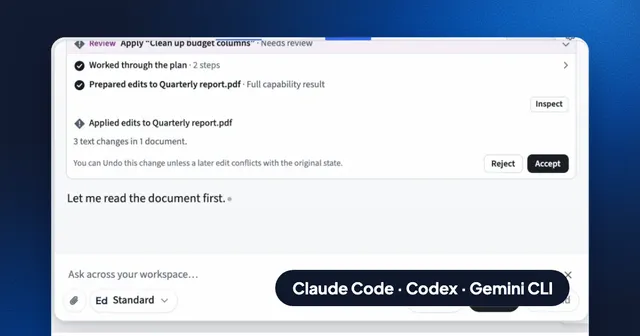
Use Claude Code, Codex or Gemini CLI on Your Documents, With Your Own MCP Servers and API
Run Eddocu's AI chat on the coding agent you already pay for, your own API key, your company's AI gateway or your own MCP servers, and edit PDF, Word and PowerPoint files with the layout kept.
Guide 5 min read
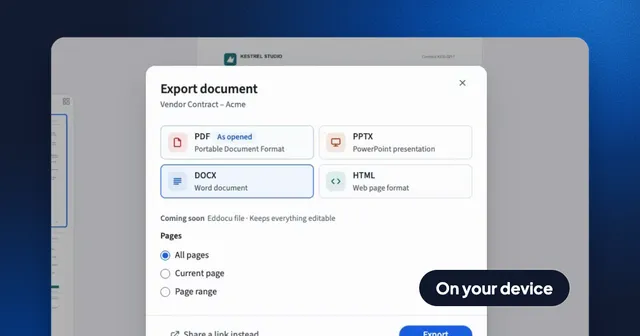
Convert a PDF to Word and Back Without Uploading It
Export a PDF to an editable Word file on your computer or phone, with the layout kept and no internet needed, then turn the Word file back into a PDF. Recorded in the app, with what survives the trip and what does not.
Guide 3 min read
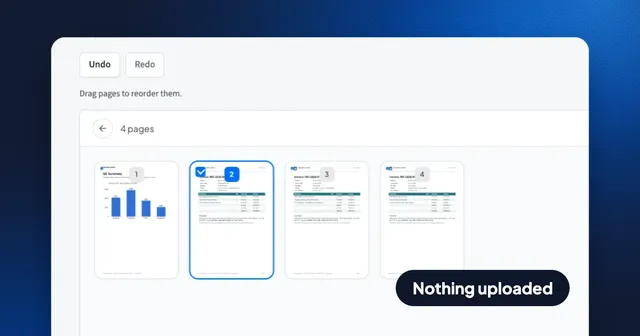
How to Merge PDF Files Without Uploading Them, Then Put Every Page in Order
Join up to 100 PDFs in your browser with nothing uploaded, no account and no watermark, then drag single pages into place. Recorded step by step, with Preview and merge websites compared.
Guide 3 min read